Firestick & Fire TV app
APOLLO IPTV PLAYER
Download and install APOLLO IPTV PLAYER on Firestick and Fire TV using the Downloader app and code 8278550, then sign in with the details from your IPTV Apollo subscription. Follow the step-by-step guide below — it takes a few minutes.
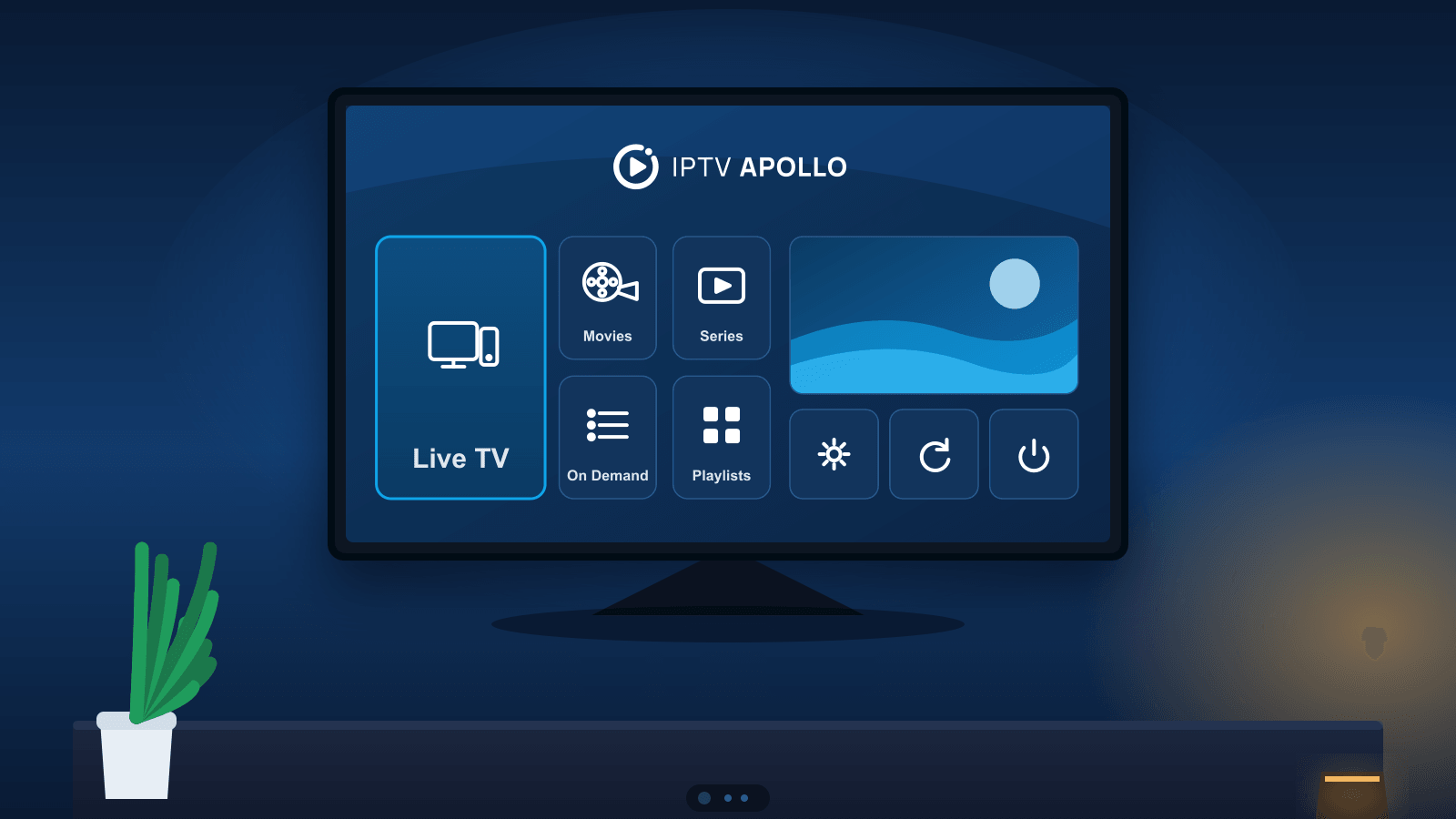
Fire TV setup illustration
 Downloader
 code
Enter this code in the Downloader app
8278550
Full download link (if you prefer to type it): http://aftv.news/5330840
- File
- Service-Apollo1.apk
- Package name
- com.playertvapollo.pro
- Version
- 3.8
- Requires
- Firestick / Fire TV on Fire OS with Android 5.0 or later
Fire TV installation
How to install APOLLO IPTV PLAYER on Firestick & Fire TV
Written for everyday Fire TV customers. Menu names can vary a little between Firestick and Fire TV models and software versions, so look for the closest matching option.
Install the Downloader app on your Fire TV
- From the Fire TV home screen, open Find (or the search icon).
- Select Search.
- Type Downloader and choose it from the results.
- Select the orange Downloader app and choose Download or Get.
- Once it installs, select Open.
DownloaderYou only need to do this once.Enter Downloader code 8278550
- Open the Downloader app (allow any first-run permissions it asks for).
- Select the URL or search field at the top of the Home tab.
- Type the Downloader code 8278550.
- Select Go.
The Downloader code (8278550) is a shortcut for the full download link http://aftv.news/5330840. You can enter either one.
Download and install APOLLO IPTV PLAYER
- Wait for the APK to finish downloading.
- When the install screen appears, review it and select Install.
- If you instead see a message about unknown apps, follow step 4 below, then come back and install.
Allow installs from unknown apps (if you see the warning)
Some Fire TV devices show: “For your security, your TV is not allowed to install unknown apps from this source.” This is normal — you just turn the permission on for the Downloader app:
- When the message appears, select Settings.
- Find the option that allows installing unknown apps.
- Locate Downloader in the list of apps.
- Turn the permission ON for Downloader.
- Press Back to return to Downloader and continue the install.
This permission is only for the Downloader app, so it can install the one APK you chose. You can turn it back off afterwards. Only install APK files from sources you trust.

Illustration of the warning and the setting to change — not an actual screenshot. Finish and open the app
- When the install completes, select Done (or Open).
- If you selected Done, find APOLLO IPTV PLAYER in your Fire TV Apps section (you can move it to the home row for quick access).
- Open the app and enter the access details our team sends you.
Troubleshooting
Can't find Developer Options or the unknown-apps setting?
On some Firestick and Fire TV models the install-unknown-apps setting lives under Developer Options, and Developer Options stays hidden until you reveal it. Here's how:
- Open Settings.
- Select My Fire TV (on some models this is Device & Software).
- Open About.
- Highlight your Fire TV's name (the top line).
- Press the Select button on your remote seven times.
- A message appears confirming Developer Options are enabled.
- Go back one menu and open Developer Options.
- Select Install Unknown Apps (or Apps from Unknown Sources).
- Find Downloader and turn it ON.
Good to know
Menu names vary by model and Fire OS version, so look for the closest match. You only need to enable the setting for Downloader — there's no need to turn on ADB debugging or change other security settings.Still stuck?
Quick fixes for common issues
The Downloader code doesn't work
Check that you typed 8278550 with no spaces and that your Fire TV is online. You can also type the full link, aftv.news/5330840, into Downloader's address field.
The download doesn't start
Restart Downloader and try again, and make sure the device has enough free storage. If a page opens instead of a download, use the download option on that page.
The app doesn't open after installing
Restart your Fire TV and try again. If it still won't open, your device may not support it — contact our team on WhatsApp and tell us your Fire TV model.
Using a different device?
This APK is for Firestick and Fire TV on Fire OS. On other devices, install a compatible player from the device's app store — see our device guides.
Install only from sources you trust
Allowing unknown-app installs lets any app, not just this one, be installed from that source — so turn the permission on only for Downloader, only install APK files from sources you trust, and consider turning the setting back off afterwards. Our guide to installing IPTV apps safely explains more.FAQ
APOLLO IPTV PLAYER questions
What is APOLLO IPTV PLAYER?
How do I install APOLLO IPTV PLAYER on Firestick?
Where do I find the Downloader code?
My Fire TV says it can't install unknown apps from this source — what do I do?
I can't find Developer Options on my Fire TV.
What should I do if the download fails?
Is APOLLO IPTV PLAYER available on every device?
New to Fire TV? Read how to set up IPTV on Firestick and the Fire TV Stick compatibility guide. After installing, see how to connect a player to your subscription.